Event Analysis
Count, slice and compare any event over time. This is the most flexible report in Insights.
Choose events#
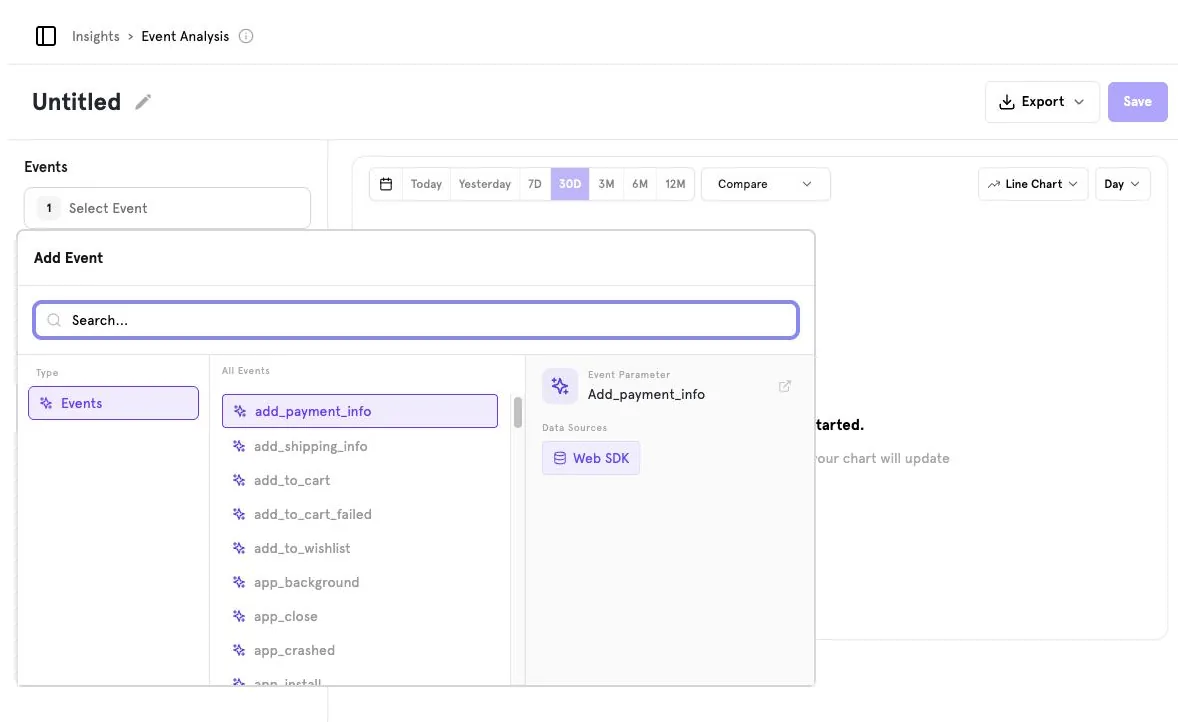
Open Insights → Event Analysis and click Select Event. Search or browse the event list; the right side shows the event's details and the sources it comes from.
Choose a measure#
Under each event, pick how to count it: Unique Users, Event Count or Aggregate Property. Use the filter icon next to an event to restrict it (for example, only purchases on ios).
Break down and compare#
Add a Breakdown property to split the result into series. Use Compare to overlay the previous period.
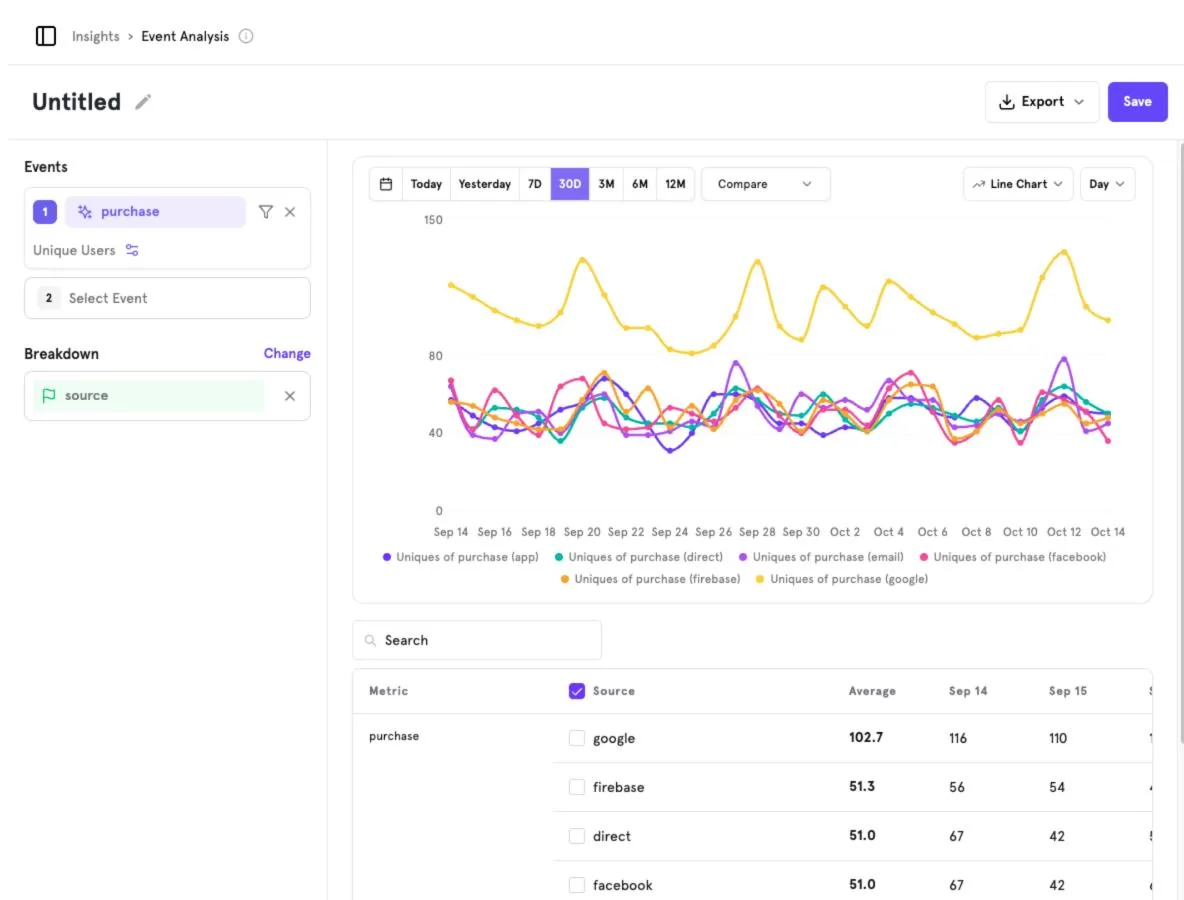
Chart types#
| Chart | Best for |
|---|---|
| Line | Trends over time (default). |
| Column | Comparing periods side by side. |
| Bar | Ranking breakdown values. |
| Metric | A single headline number. |
| Pie | Share of total across breakdown values. |
Use the interval selector next to the chart type (e.g. Day) to switch between hourly, daily, weekly and monthly buckets.
Data table#
The table under the chart lists every series with its average and per-period values. Untick a row to hide it from the chart, or search to find a specific value.
Save and export#
Rename the report from Untitled and click Save. Export downloads the data.
Screenshots captured from the B2Metric E‑Commerce demo workspace, October 2026.